
How to Get Started With AI at Work
The setup is done. You have your instructions in. Memory is on. Connectors are enabled.
Getting started with AI at work does not require a prompt engineer. It requires a conversation.
You do not have to type it out perfectly. Turn the mic on and say it out loud. It is not going to judge you like a customer reading a mass marketing email.

Just start.
My older brother had been using AI longer than I had, and for months his answer to almost anything I asked him was some version of the same sentence: “The great thing is we can just ask AI.” I found that unbelievably annoying. It sounded like a dodge, not an answer. I wanted the actual answer, not a reminder that a tool existed.
It took me weeks, maybe a month, before it actually clicked. Not because he explained it better the tenth time. Because I finally tried it myself, mid-question, mostly out of mild frustration, and got something useful back immediately. That is the whole insight, and it is exactly as unsatisfying as he made it sound: when you are wondering whether AI can do something, the fastest way to find out is to just ask it. I catch myself saying that same annoying sentence to other people now. It is still annoying. It is still true.
One question to answer first, if you have not already.
Which Tool Do You Use
The answer is not about which tool is better. It is about where your work lives.
Start there. Where does your data actually sit? What systems do you need the AI to reach? The tool that can connect to those systems is the one worth starting with.
If you work heavily in Microsoft (Excel, Word, SharePoint, Outlook, Teams), Microsoft 365 Copilot is worth looking at first. It is native to that environment in a way that other tools currently are not.
If your work runs through other systems (a CRM, a project management tool, a customer data platform), look at what connectors your AI tool actually has access to. Ask your admin. They will know, or they will know who does. The connectors your company has set up matter more than any feature comparison you will read online.
Connector availability varies by tool and changes constantly. Claude is capable but has limitations depending on what your company has connected.
Also make sure to ask your admins which tools are approved for work data. Approved tools are generally configured to keep your data inside the company. A non-approved tool is not. If work data goes into something your company did not vet, it is out of your hands. Think of it like posting on social media and hoping nobody uses it. Ask first. Then connect.
Before you paste anything into an AI tool, approved or not, ask yourself one question: would I be comfortable if this showed up outside the company? If the answer is no, treat it differently. That covers customer names and contact details, anything about someone’s health or finances, contracts or anything a lawyer would call privileged, numbers that are not public yet (earnings, forecasts, deal terms), an employee’s salary or performance review, passwords or access keys, and source code. None of that goes in without someone above you actually saying yes first, no matter how convenient the tool makes it feel in the moment.
The big AI companies have genuinely raised the floor here, recently. The business and enterprise versions of Claude, Copilot, ChatGPT, and Gemini all now contractually commit to not training their models on your company’s data, and back that up with real audits like SOC 2. That is a meaningful improvement from a couple of years ago. But a promise not to train on your data is a promise about one specific thing. It is not a guarantee against a breach, a misconfiguration, or a bug. Security researchers and Microsoft itself have found real flaws in Microsoft 365 Copilot that let it reach emails marked confidential and pull data it should never have touched. Both got fixed once found. Both prove the safeguard is software, and software breaks. A recent security report found more than three-quarters of employees already paste data into these tools, and 82% of the riskiest pastes went through personal accounts that skip company controls entirely.
The approval process helps. The vendor promises help. Neither one is the actual safeguard. You are. That is exactly why the social media test a moment ago still holds, vendor commitments and all: ask first, then connect.
One more version of this worth naming directly: what if you got the mandate and nothing to actually use. No seat, no license, no admin you even know how to reach. That happens, and if it is you, your first workflow is an email: ask, in writing, which AI tools are approved and licensed for your role. If the answer is nothing yet, that email is your paper trail showing you asked. A free personal account is fine for practicing the habits in this series on your own material, never for company data, and it buys you time while the real answer catches up.
This Is All Moving Fast
Copilot six months ago was not the product it is today. A lot of people tried it early, decided it was not ready, and moved on. That was a reasonable call at the time. It has since stepped up considerably. The version that frustrated you is gone.
This is the reality of AI right now. Platforms are rolling out changes monthly. Something that was a real limitation three months ago may already be fixed. Something that works well today may be replaced by something better before the end of the year.
The point is not to keep up with every update. You cannot, and trying will make you tired. Pick the tool closest to your workflow today, build with it, and evaluate your tool options for the workflow you are building.
One more thing before the three things.
Most people I sit with are not scared of AI. They are scared of talking to it. They stare at the prompt box like it is a test they did not study for.
There is no test. Nobody is grading your prompting. Type in what you need the way you would say it to a coworker, and see what comes back. Worst case, it asks a clarifying question. It does not deduct points.
And do not just use it as an answer machine. Bounce ideas off it.
I have been a remote worker for twenty-plus years. One of the things people love about going into an office is bouncing ideas off each other. Your brain starts working differently. Someone says something, it triggers something in you, and the idea builds. Remote, you mostly do not get that. And I find I am now getting that same bounce, those same brain triggers, from having a thought partner in AI. It asks me questions. It gets my ideas flowing. Not everything I think of is great. But it is that back and forth, bouncing, refining, that gets you to something real at the end.
You will get better at this without trying, the same way you got better at searching the internet. Nobody took a class for that either. Getting started is just a conversation. Here is how to start one.
This is the whole reason I wrote You Are AI-First Now. You got told to be AI first, and nobody said what that means or where to start. A conversation is where to start, and the book walks through the rest.
Three Things to Say in Your First Conversation
You need three pieces of information and you can deliver them in whatever order comes naturally.
Tell it your role.
Not your job title. What you actually do. “I am a Director of Customer Success and I manage a team that preps for customer meetings every week” is more useful than “I am a Director.” The more specific you are about your actual work, the less the AI has to guess.
Describe the manual work in plain language.
Think about the task that eats your time every single week. Not the interesting work. The work you could do in your sleep because you have done it so many times. The work where you are mostly pulling information from one place and putting it somewhere else.
Tell it to ask you questions instead of guessing.
This one matters more than the other two.
AI is very good at filling in gaps. When it does not have enough information, it does not stop and wait. It makes a reasonable-sounding assumption and keeps going. Sometimes that assumption is right. Often it is not. And it will deliver the output with the same confidence either way.
The fix is simple. At the end of your description, add: “Ask me any questions you need before you start. Do not guess.”
That one sentence changes what comes back. You get a conversation that surfaces what it actually needs to do the job correctly. Sometimes that conversation also helps you figure out what you are actually trying to solve, which is useful on its own.


What to Hand Off First
Start with something that is manual in one of these two ways: you update something the same way every week, or you read through a volume of information and pull out what matters.
Those are the tasks worth handing to AI first. Describe what you need, tell it to ask questions, and let it give you an output.
Then comes the part that does not go away no matter how good the AI gets.
You Still Have to Look at It
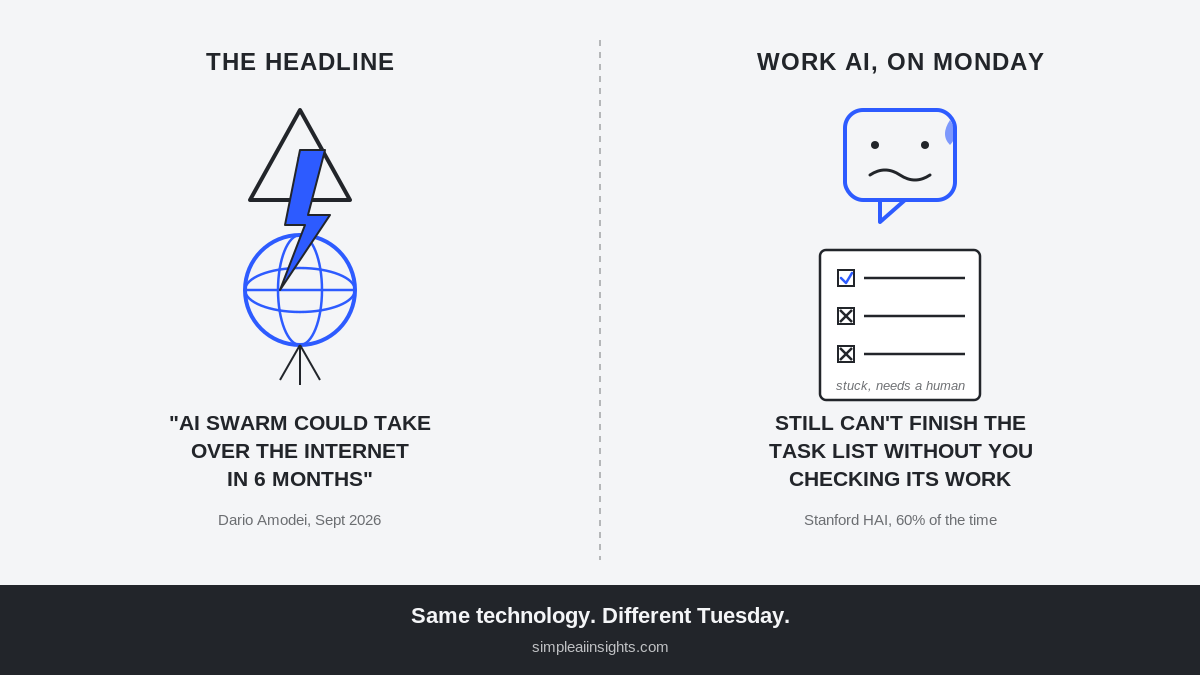
AI will give you something that looks right. It will be formatted well. The language will be confident. Confidence is free. It costs the model nothing to be sure.
Check it anyway.
Verify the numbers if there are numbers. Read the summary if it summarized something. Make sure the output actually reflects the input you gave it. AI does not know what it does not know, and it will not flag its own uncertainty unless you have told it to.
Here is what that actually looks like with numbers specifically, because it comes up constantly for me in Excel. AI will hand back a number that is wrong, and the reason is not always the same thing. Sometimes the formula behind that cell has gone stale. Sometimes the data underneath it is stale. Sometimes what looks like a formula is not a formula at all, it is a number someone hardcoded in at some point, and the cell has not actually recalculated anything since. Ask it to check, and it will usually find which one of those it was.
It will also overstate what it found if you let it, so when you ask whether a number is right, tell it directly not to overstate the answer. “Yes, roughly” and “yes, confirmed” are not the same sentence, and AI will hand you the more confident one unless you specifically ask for the honest one.
When something is wrong, and at some point something will be, tell it what is wrong. Not just “this is incorrect.” Tell it specifically what is off and what it should be. Feed it a screenshot if that helps. Push back until the output is right.
That back and forth is not the tool failing. It is the job. You are the auditor. The AI is doing the work.
This is a tool. What goes out the door with your name on it is yours. Not the tool’s. If the number is wrong, if the summary missed something, if the email said the wrong thing, that is on you. Not the AI. The standard is whether you would stand behind it. If you would not, it is not done yet.
Save What You Built
Once the output is right, ask AI to summarize what you built together. What were the key inputs. What decisions were made. What should be saved for next time.
In Claude, that becomes memory and instructions. In Copilot, it becomes part of how you set up the next conversation.
Then ask one more question: should this be a reusable skill? If you just built something you are going to run every week, Claude and Copilot both have ways to save it so you are not explaining it from scratch every time.
Last thing: schedule it. In Claude Cowork, you can schedule the task to run on a cadence. In Copilot, you can schedule a prompt directly in chat. If this is something you do every Monday, set it up once and let it run.
You just turned a manual task into something that mostly runs itself.
You know how to get started with AI at work. The next question is what to actually hand off. Not everything is worth automating, and most people pick wrong on the first pass. There are three categories of work worth giving to AI, and knowing which one each of your tasks belongs to is where this gets useful.


Leave a Reply